Technology
Technology
Welcome to the Pavelka App Help Center
Welcome to the Pavelka App Help Center
Your guide to getting the most out of the app: work through your programs, find what you need in the resource library, and join a challenge with your team.
Your guide to getting the most out of the app: work through your programs, find what you need in the resource library, and join a challenge with your team.

Getting started
Getting started
The Pavelka Platform is accessed through your organization's account, there's no separate password to create. How you sign in looks slightly different depending on whether you're on the web app or the mobile app Pavelka Connect.
The Pavelka Platform is accessed through your organization's account, there's no separate password to create. How you sign in looks slightly different depending on whether you're on the web app or the mobile app Pavelka Connect.
How to Get Started in the Web App
How to Get Started in the Web App
Step-by-step
Step-by-step
1
Log in
Go to app.pavelka.global and select Connect with Webex (or your organization's provider).
Go to app.pavelka.global and select Connect with Webex (or your organization's provider).

2
Sign in with your provider
You'll be redirected to your provider's login screen. Enter your work account credentials.
You'll be redirected to your provider's login screen. Enter your work account credentials.

3
You're in
Once verified, you're taken straight to your Pavelka dashboard.
Once verified, you're taken straight to your Pavelka dashboard.

How to Get Started in the Mobile App
How to Get Started in the Mobile App
Step-by-step
Step-by-step
1
Download the app
Search "Pavelka Connect" on the App Store (iOS) or Google Play (Android). Or scan your store QR code:
Search "Pavelka Connect" on the App Store (iOS) or Google Play (Android). Or tap on your store button:


1
Download the app
Search "Pavelka Connect" on the App Store (iOS) or Google Play (Android). Or scan your store QR code:
2
Log in to the app
Tap Connect with Webex. You'll be redirected to your provider's login screen.
Tap Connect with Webex. You'll be redirected to your provider's login screen.

3
Sign in with Webex
Enter your usual work email address and tap Sign In to continue.
Enter your usual work email address and tap Sign In to continue.

4
You're in!
You'll land on the home screen, where you'll see a few resources to get started.

First time signing in?
First time signing in?
Your account is created automatically the moment you sign in with your company credentials — there's no separate signup form to fill out. Your name, email, and team are pulled from your company directory.
Pavelka never sees or stores your company password. Authentication happens directly through your organization's provider.
Your account is created automatically the moment you sign in with your company credentials — there's no separate signup form to fill out. Your name, email, and team are pulled from your company directory.
Pavelka never sees or stores your company password. Authentication happens directly through your organization's provider.
Can't access the platform?
Can't access the platform?
If your organization hasn't set up the Pavelka Platform yet, you won't be able to sign in. Reach out to your HR or People team to check on the status, or email us at support@pavelka.com and we'll help get your company onboarded.
If your organization hasn't set up the Pavelka Platform yet, you won't be able to sign in. Reach out to your HR or People team to check on the status, or email us at support@pavelka.com and we'll help get your company onboarded.
Challenges
Challenges
A challenge is a goal with a start and end date. Create your own, join one with your colleagues, or take part in a company-wide challenge.
A challenge is a goal with a start and end date. Create your own, join one with your colleagues, or take part in a company-wide challenge.
On Demand Challenges
On Demand Challenges
A personal challenge you set up for yourself, no team required. Pick a focus area, choose a duration, and track your own streak day by day.
A personal challenge you set up for yourself, no team required. Pick a focus area, choose a duration, and track your own streak day by day.
How it works
How it works
1
Pick a focus area: hydration, movement, sleep, or stress.
2
Log one activity a day to build your streak.
3
Earn a badge once you hit your goal.
Streaks & Milestones
Streaks & Milestones
Your streak counts the consecutive days you've logged an activity. Miss a day and the streak resets, but your total progress and points stay saved — you just start counting again from the next day.

Company Challenges
Company Challenges
A company-wide challenge published by your organization. Everyone takes part at once. It's the one your HR or People team sets up around a shared theme.
A company-wide challenge published by your organization. Everyone takes part at once. It's the one your HR or People team sets up around a shared theme.
How it works
How it works
1
Your organization launches the challenge. You're invited to participate.
2
Follow the shared theme and daily activity suggestions.
3
Your results count toward your team's and the company's total.
4
Celebrate the outcome together when the challenge wraps up.
Themes & calendar
Themes & calendar
Company challenges are typically tied to wellbeing awareness dates throughout the year (e.g. Mental Health Month, Sleep Awareness Week). Your organization decides the theme, timing, and any rewards tied to participation.

Wearable Challenges: connect your device
Wearable Challenges: connect your device
Connect your smartwatch or fitness tracker so your activity (steps, workouts, sleep, or heart rate) counts toward your challenge automatically. No manual logging, no forgetting to check in.
This requires the Pavelka Connect mobile app. If you haven't downloaded it or signed in yet, head to Getting Started first — this section picks up from there.
Connect your smartwatch or fitness tracker so your activity (steps, workouts, sleep, or heart rate) counts toward your challenge automatically. No manual logging, no forgetting to check in.
This requires the Pavelka Connect mobile app. If you haven't downloaded it or signed in yet, head to Getting Started first — this section picks up from there.
Why Some Challenges Use Wearable Devices
Why Some Challenges Use Wearable Devices
Some challenges are marked with a "Wearable Challenge" label. These are based on measurable activity data, like steps or active minutes. You can always log this activity yourself, directly in the app. But connecting a wearable device lets it track and count automatically, so you don't have to remember to check in.
Some challenges are marked with a "Wearable Challenge" label. These are based on measurable activity data, like steps or active minutes. You can always log this activity yourself, directly in the app. But connecting a wearable device lets it track and count automatically, so you don't have to remember to check in.
Wearable isn't required to take part — it just makes tracking effortless once it's connected.
Wearable isn't required to take part — it just makes tracking effortless once it's connected.
Wearable isn't required to take part — it just makes tracking effortless once it's connected.
Connect Your Health App
Once you're signed in to Pavelka Connect, here's how to connect your phone's health app so your activity starts counting toward your challenges.
Once you're signed in to Pavelka Connect, here's how to connect your phone's health app so your activity starts counting toward your challenges.
1
Connect your health app
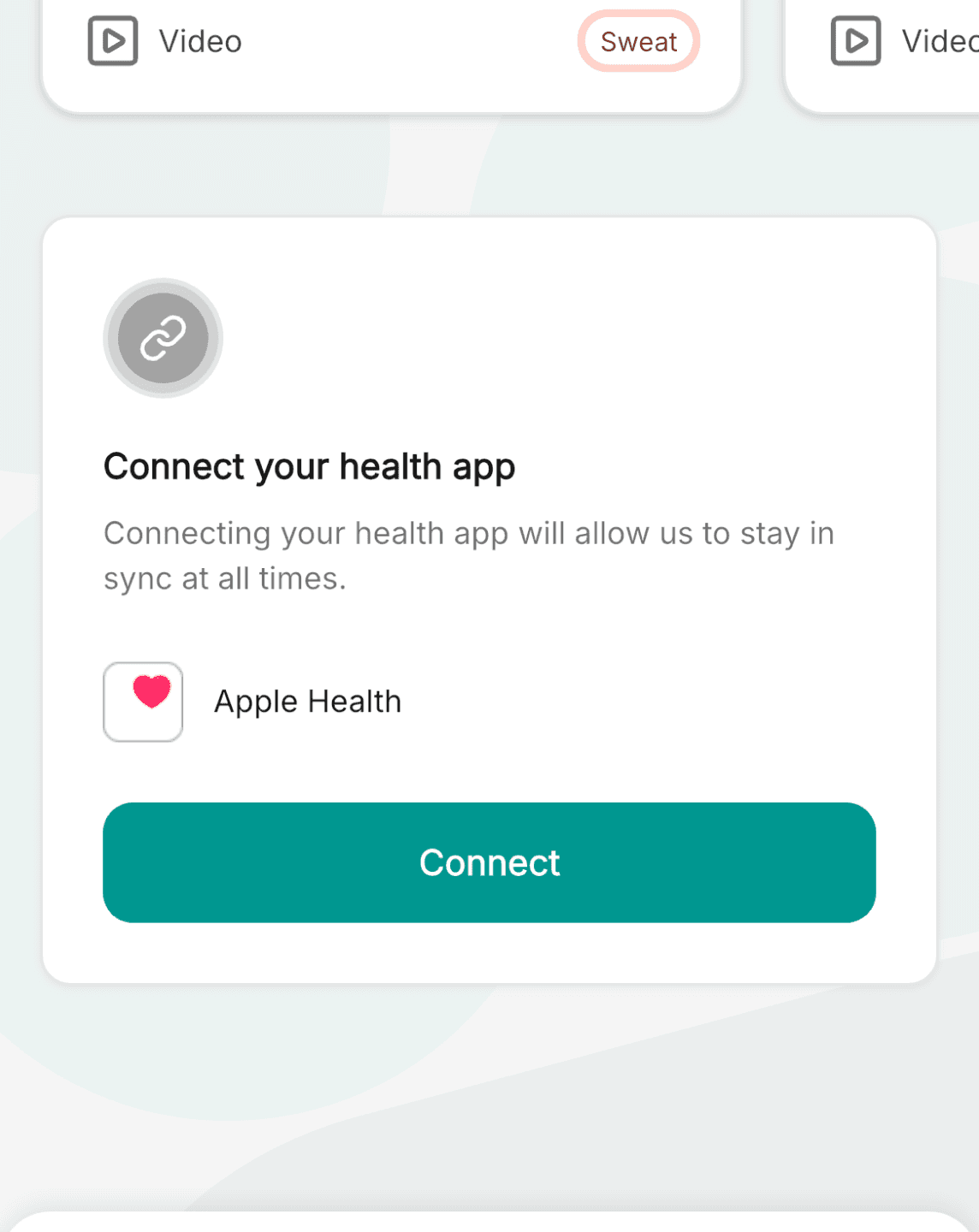
Find the "Connect your health app" card at the bottom of the home screen.
Find the "Connect your health app" card at the bottom of the home screen.
2
Read and review
Tap Connect. Before granting access, you'll see exactly what connecting includes.
Tap Connect. Before granting access, you'll see exactly what connecting includes.

3
Grant access
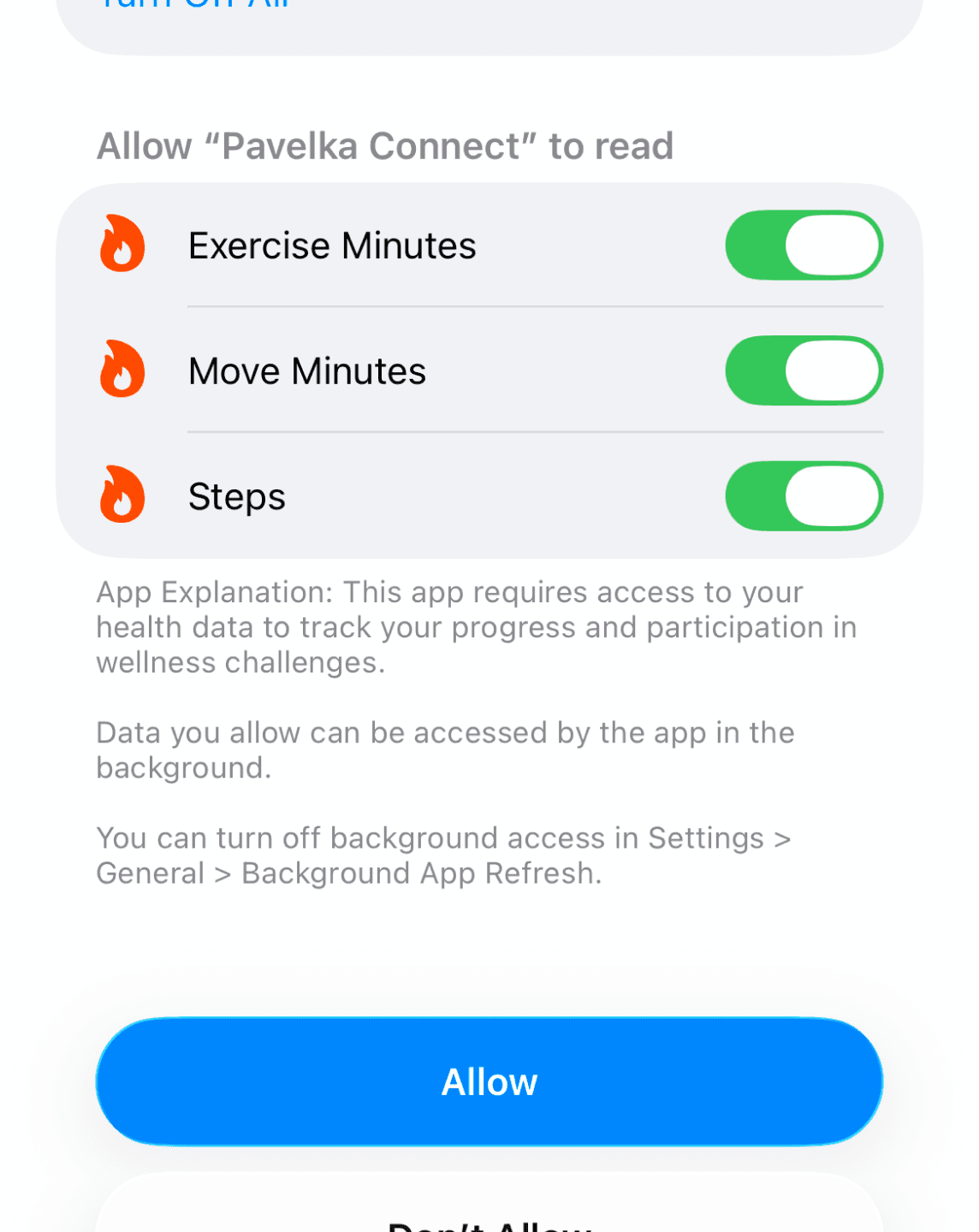
You'll be asked to allow access to individual metrics. Tap Turn On All, then tap Allow.
You'll be asked to allow access to individual metrics. Tap Turn On All, then tap Allow.
3
Grant access
You'll be asked to allow access to individual metrics. Tap Turn On All, then tap Allow.
4
Done! You’re ready
And that’s it. From here on, your activity syncs automatically in the background.

4
Done! You’re ready
And that’s it. From here on, your activity syncs automatically in the background.
And that’s it. From here on, your activity syncs automatically in the background.
5
Manage your connection
You can always go to Settings to review permissions, disconnect, or manage app access.
You can always go to Settings to review permissions, disconnect, or manage app access.

Good to know
Good to know
Once your wearable is linked to Apple Health or Health Connect, it connects to Pavelka Connect automatically — no separate setup inside the app.
Sync happens automatically in the background — no need to open the health app every time.
You can disconnect anytime from Settings > Connected Devices.
Only activity logged after connecting counts toward challenges — past data isn't backfilled.
Your raw health data stays private — only the metrics you choose to share are used, and only aggregated totals are visible to teammates in group or company challenges.
Once your wearable is linked to Apple Health or Health Connect, it connects to Pavelka Connect automatically — no separate setup inside the app.
Sync happens automatically in the background — no need to open the health app every time.
You can disconnect anytime from Settings > Connected Devices.
Only activity logged after connecting counts toward challenges — past data isn't backfilled.
Your raw health data stays private — only the metrics you choose to share are used, and only aggregated totals are visible to teammates in group or company challenges.
5
Manage your connection
You can always go to Settings to review permissions, disconnect, or manage app access.
Good to know
Connecting your health app is optional. You can always track challenge progress manually instead.
Only the metrics you approve are shared; your full health history is never accessed.
If you disconnect, any previously synced data is deleted.
You can reconnect or manage permissions anytime from Settings > Connected apps & devices.
Connecting Your Wearable to Your Health App
Most wearables don't connect to Pavelka Connect directly — instead, they sync through your phone's built-in health app (Apple Health or Health Connect), which then connects to Pavelka Connect. How you set that up depends on your device.
Most wearables don't connect to Pavelka Connect directly — instead, they sync through your phone's built-in health app (Apple Health or Health Connect), which then connects to Pavelka Connect. How you set that up depends on your device.

Apple Health
Health Connect
Automatically Connected Wearables
These devices sync with Apple Health or Health Connect as soon as you set them up — no extra steps needed once they're paired with your phone.
These devices sync with Apple Health or Health Connect as soon as you set them up — no extra steps needed once they're paired with your phone.
Apple Watch — syncs with Apple Health automatically once paired.
Samsung Galaxy Watch — syncs with Health Connect automatically once paired via the Galaxy Wearable app.
Apple Watch — syncs with Apple Health automatically once paired.
Samsung Galaxy Watch — syncs with Health Connect automatically once paired via the Galaxy Wearable app.
Wearables Requiring Manual Setup
These devices need their own app installed, plus a manual permission step to share data with Apple Health or Health Connect. Tap your device below for setup instructions from the manufacturer.
These devices need their own app installed, plus a manual permission step to share data with Apple Health or Health Connect. Tap your device below for setup instructions from the manufacturer.
If your device isn't listed here, check whether it supports Apple Health or Health Connect directly through its own app settings.
If your device isn't listed here, check whether it supports Apple Health or Health Connect directly through its own app settings.
Data entry for wearable challenges
Data entry for wearable challenges
For wearable challenges, you can choose how your activity gets tracked — enter it yourself, or let your device or wearable do it automatically.
For wearable challenges, you can choose how your activity gets tracked — enter it yourself, or let your device or wearable do it automatically.
•
Manual Input: Enter your steps or active minutes yourself, directly in the app. A good option if you'd rather not connect a device, or if you're tracking activity that isn't captured automatically.
Manual Input: Enter your steps or active minutes yourself, directly in the app. A good option if you'd rather not connect a device, or if you're tracking activity that isn't captured automatically.
•
Use Your Device or Wearable: Let your phone's health app or a connected wearable sync your activity automatically.
Use Your Device or Wearable: Let your phone's health app or a connected wearable sync your activity automatically.
Programs
Programs
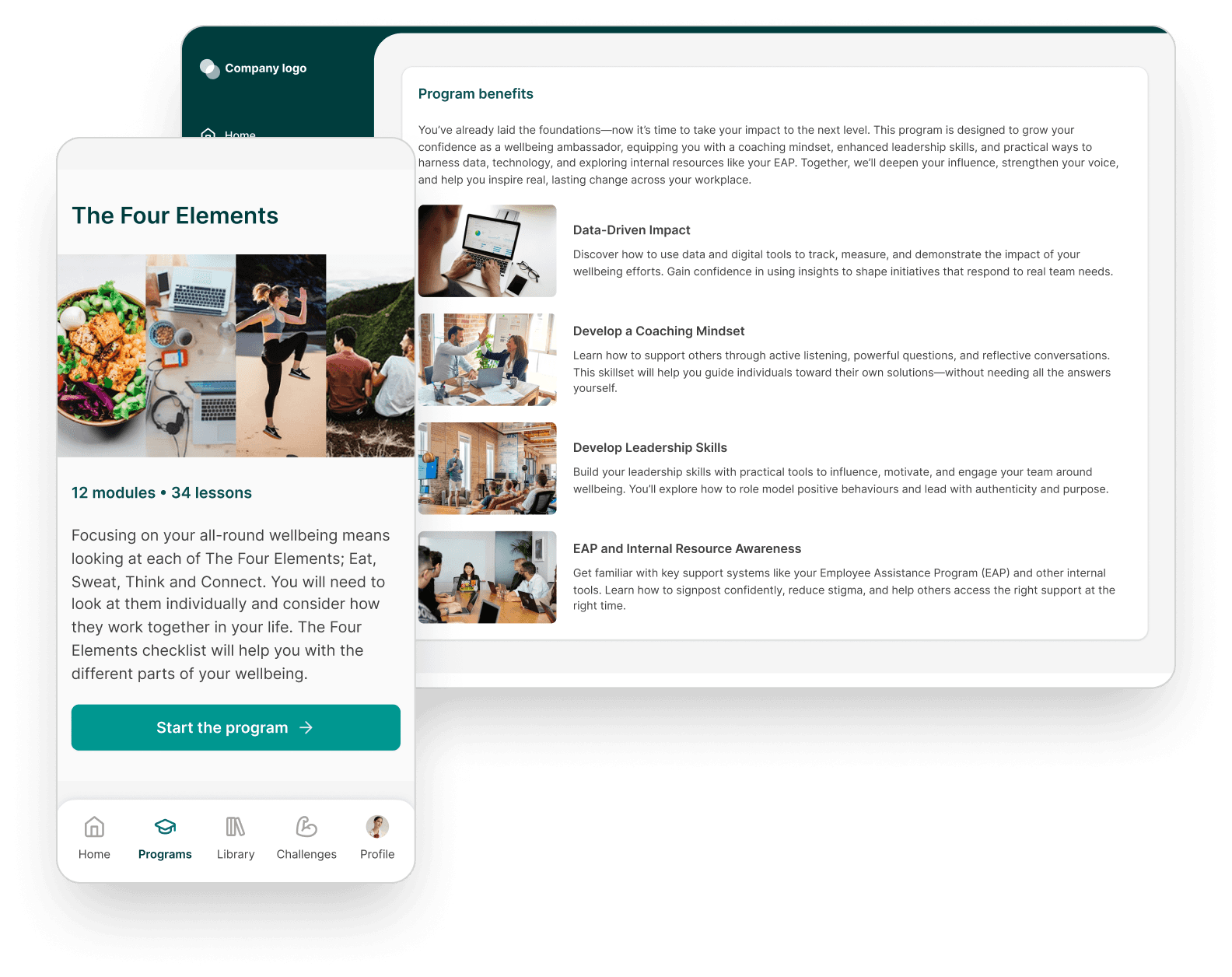
Programs are structured courses built around a specific goal. They are organized into modules, lessons, and resources, so you always know what's next and how far you've come. Available on both web and mobile, with the same experience either way.
Programs are structured courses built around a specific goal. They are organized into modules, lessons, and resources, so you always know what's next and how far you've come. Available on both web and mobile, with the same experience either way.
How it works
How it works
1
Pick a program based on your goal: focus, energy, stress, or habits.
2
Work through the modules in order: each one groups a few short lessons.
3
Mark each lesson as done; your progress saves automatically.
4
Pick up anytime: the app takes you straight back to your last lesson.

What's inside a Program
What's inside a Program
•
Modules: themed sections that break the program into stages.
•
Lessons: individual steps within a module, each built around one specific idea.
•
Resources - Activities: the content within each lesson: a video, audio, reading, or a short activity to complete.
•
Progress tracker: shows your completion percentage across modules, lessons, and resources.
Library
Library
The Resource Library is a collection of videos, podcasts, guides, and PDFs grouped by topic — separate from any program, so you can explore freely or search for something specific whenever you need it. Works the same way on web and mobile.
The Resource Library is a collection of videos, podcasts, guides, and PDFs grouped by topic — separate from any program, so you can explore freely or search for something specific whenever you need it. Works the same way on web and mobile.
How it works
How it works
1
Open the Resource Library and pick a collection, or use the search bar to find collections and resources.
2
Filter by format: video, podcast, guide, article or PDF, based on how you'd like to consume it.
3
Save resources you like so you can find them again in one tap.
4
Download PDFs and guides to access them offline.


What's inside the Library
What's inside the Library
•
Collections: resources grouped by topic (e.g. sleep, stress, nutrition, movement).
•
Formats: video, podcast, guide, and PDF.
•
Search: find a specific resource or collection by title or keyword.
•
Favorites: a personal shortlist of resources you've bookmarked for later.
Positive energy at work.
Solutions
Company
Resources
© 2026 Pavelka Ltd. All rights reserved.
Positive energy at work.
Solutions
Company
Resources
© 2026 Pavelka Ltd. All rights reserved.
Positive energy at work.
Solutions
Company
Resources
© 2026 Pavelka Ltd. All rights reserved.